---
title: How to create a Google Calendar for your Personal Calendars
description: TrainerPersonalCalendarSetUp
---
[Skip to content](https://help.smarthealthclubs.com/knowledge/how-to-create-a-google-calendar-for-your-personal-calendars#main-content)
English
Show submenu for translations

Open main navigation
Close main navigation
- English
Show submenu for translations
- Contact us
Contact us
How can we help you?
- There are no suggestions because the search field is empty.
1. [Help Center](https://help.smarthealthclubs.com/knowledge?hsLang=en)
2. [2. QUICK START GUIDES](https://help.smarthealthclubs.com/knowledge/2-quick-start-guides?hsLang=en)
# How to create a Google Calendar for your Personal Calendars
## Personal Trainers/Instructors and other service providers can link their SHC appointments/classes to their own Google Calendar. This allows you to manage all your work schedules—across multiple employers/entities/businesses—in one place. Follow the steps below to set up your SHC Calendar.
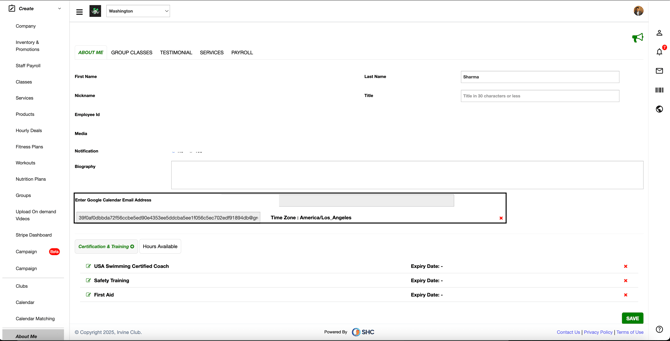
#### **1. Go to Your Profile on the Web App**
1. Log in to the **SHC Web App**.
2. Navigate to:
**Create → About Me**
3. Scroll down to the field labeled **“Enter Google Calendar Email Address.”**
****
---
#### **2. Enter Your Google Email Address**
- Type in the **Gmail address** where you want to receive your calendar.
- This must be a valid Google account (for example: `yourname@gmail.com`).
---
#### **3. Click “Create Google Calendar ID”**
- Once you click this button, our system automatically creates a **dedicated SHC calendar** for your appointments.
- You do not need to create anything manually.
---
#### **4. Check Your Email for the Calendar Invite**
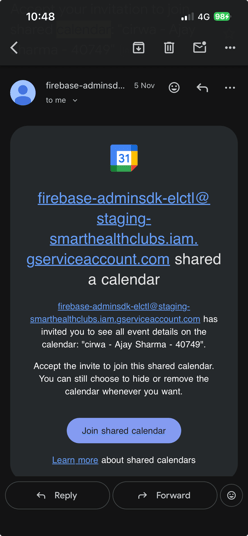
You will receive an email from a sender that looks like this:
**firebase-adminsdk-xxxx@staging-smarthealthclubs.iam.gserviceaccount.com**
The email will say that a calendar has been shared with you.
****
---
#### **5. Accept the Shared Calendar**
Inside the email:
1. Click **“Join shared calendar.”**
2. This will open Google Calendar.
3. Click **Add** to confirm.
Once added, the calendar will appear under your **Other Calendars** section.
---
#### **6. View Your Appointments Anywhere**
Once added to your Google account:
- The SHC calendar will sync on **all devices** where you’re logged into the same Google account:
- iPhone / iPad (via Apple Calendar app)
- Android devices
- Google Calendar on the web
- Outlook (if your Gmail is connected)
- Any calendar app that supports Google Calendar
You can turn the calendar **on/off** at any time without deleting it.
---
#### **7. What Will Show on This Calendar?**
- All **appointments, Classes, Programs** created through the SHC platform with you as the Service Provider/Trainer/Instructor.
- Any updates (reschedules/cancellations) will automatically sync.
This keeps your SHC schedule in sync with your other jobs and personal calendars.
---
#### **Need Help?**
If your calendar invite doesn’t arrive or if you entered the wrong email address, please contact your club administrator or write to **support@smarthealthclubs.com**.
- [1. BASIC CONCEPTS AND PROCESSES](https://help.smarthealthclubs.com/knowledge/1-basic-concepts-and-processes?hsLang=en)
- [2. QUICK START GUIDES](https://help.smarthealthclubs.com/knowledge/2-quick-start-guides?hsLang=en)
- [3. TROUBLESHOOTING](https://help.smarthealthclubs.com/knowledge/3-troubleshooting?hsLang=en)
- [4. CHECKLISTS](https://help.smarthealthclubs.com/knowledge/4-checklists?hsLang=en)
- [5. UPDATES AND ANNOUNCEMENTS](https://help.smarthealthclubs.com/knowledge/5-updates-and-announcements?hsLang=en#main-content)
- [Release Notes](https://help.smarthealthclubs.com/knowledge/5-updates-and-announcements?hsLang=en#release-notes)
- [Upcoming Features](https://help.smarthealthclubs.com/knowledge/upcoming-features?hsLang=en)
# Smart Health Clubs
[mailto:email@email.com](mailto:email@email.com)
Copyright © 2026, Smart Health Clubs